CRM Integration Guide for Service Businesses: Connect the Tools You Actually Use
Every integration you add to your CRM creates potential value — and potential complexity. Done right, integrations eliminate duplicate data entry and keep information synchronized across your tools. Done wrong, they create sync conflicts, broken workflows, and data that can't be trusted.
This guide covers the integrations that matter most for service businesses, how to evaluate them before setting them up, and the mistakes that turn useful connections into maintenance problems. Last updated April 2026.
The Integration Hierarchy: What to Connect First
Not all integrations are equally valuable. Prioritize in this order:
Tier 1: Must-Have Integrations
Email (Gmail or Outlook)
Bidirectional email sync is the most important CRM integration for any service business. Without it, every customer email has to be manually logged — which means it usually doesn't get logged.
With email sync, every message to or from a customer automatically appears in their CRM record. Your team can see full communication history before picking up the phone. No manual logging, no searching through personal inboxes.
Verify that the integration is bidirectional (emails sent from the CRM appear in Gmail/Outlook; emails sent from Gmail/Outlook appear in CRM) and that it can associate emails to the right customer record automatically based on email address.
Accounting Software (QuickBooks or Xero)
The gap between a completed job and a paid invoice is where service businesses lose both time and money. A clean accounting integration means:
- Customer records sync between CRM and accounting software (no double entry)
- Invoices created in CRM flow into accounting without re-entry
- Payment status visible in CRM so reps know which accounts are current
The key word is bidirectional. A one-way push from CRM to QuickBooks is useful; a two-way sync where payment status flows back into CRM is the real value.
Before setting up this integration, agree on which system is the source of truth for customer records. Typically: CRM is the source of truth for contact and job information; accounting software is the source of truth for financial data. The sync should respect this hierarchy.
Tier 2: High-Value Additions
Calendar (Google Calendar or Outlook Calendar)
Scheduling is a core operation for service businesses. A calendar integration means:
- Jobs scheduled in CRM appear automatically on the assigned tech's calendar
- Calendar blocks sync back to CRM so scheduling conflicts are visible
- Meeting and appointment records in the calendar link to the relevant CRM customer
This eliminates the "I put it on the calendar but not in the CRM" problem that creates double-booking and missed jobs.
Payments (Stripe, Square, or QuickBooks Payments)
For businesses that collect payment on-site or via link, a payment integration closes the loop between invoice sent and invoice paid without manual status updates. When a payment is collected, the invoice marks paid automatically in both the payment system and the CRM.
Website Lead Capture Forms
Every form submission on your website should land directly in the CRM as a new lead — not in an email inbox where it can be missed or forgotten. Most CRMs support either a native embed form or a webhook integration with form tools like Gravity Forms, Typeform, or your website's contact form.
Verify that the integration captures the source URL and form name, so you can track which pages are generating leads.
Tier 3: Useful If You Already Have Them
SMS/Text Messaging
For service businesses where customers prefer text, an SMS integration lets you send and receive texts from within the CRM while logging the conversation against the customer record. Useful if you're currently managing customer texts from personal phones.
Google Business Profile / Review Management
Some CRMs integrate with review platforms to surface new reviews in the CRM and prompt follow-up with recent customers. Lower priority, but useful if reputation management is a focus.
Dispatch and Routing Tools
If you use dedicated field service dispatch software (separate from CRM), an integration that pushes job assignments and updates bidirectionally prevents the CRM from becoming a second system that duplicates dispatch data.
How to Evaluate an Integration Before You Set It Up
Before connecting any system to your CRM, answer these questions:
Is it bidirectional or one-way? One-way integrations are useful but limited. Bidirectional sync keeps both systems current. Understand which direction data flows before you rely on the integration.
What triggers the sync? Real-time sync means changes appear immediately in both systems. Batch sync (hourly, daily) means there's a lag. For critical data like payment status or job scheduling, real-time matters. For reporting data, batch is fine.
What happens when there's a conflict? If the same record is updated in both systems before a sync, which update wins? Know the conflict resolution behavior before you discover it the hard way.
What are the failure modes? Integrations break. Authentication tokens expire, APIs change, system outages happen. How will you know when the integration has stopped working? Is there an error log? Email alerts on failures?
Is it a native integration or a Zapier workflow? Native integrations (built directly into the CRM by the vendor) are more reliable and more feature-complete than middleware workarounds. A Zapier workflow can bridge a gap, but it adds a dependency on a third system and typically has less robust error handling.
Implementation: The Right Way to Connect Systems
Start with a test environment. Most CRMs and accounting platforms have sandbox or test modes. Connect systems in test mode first, verify the sync behavior works as expected, then switch to production.
Map fields before you connect. Create a document showing how each field in System A maps to the corresponding field in System B. Where there's no direct mapping, decide how to handle it — ignore, map to a custom field, or transform the value. This prevents surprises when data syncs.
Do an initial sync with a small dataset. Don't sync 3,000 customer records on day one. Start with 20–30 records, verify everything landed correctly, then expand.
Document the integration setup. Write down which accounts are connected, what the sync direction is, when it runs, and where to find the error logs. This is invaluable when something breaks six months from now and the person who set it up isn't available.
Set up error monitoring. Configure email alerts or CRM notifications when a sync fails. An unmonitored broken integration silently corrupts data until someone notices.
Common Integration Mistakes
Integrating everything at once. Each integration adds complexity. Add them one at a time, verify each works correctly, then move to the next.
Trusting the integration without validating. After setting up any integration, spot-check 10–15 records manually. Does the data look correct? Are the right fields syncing?
Bidirectional sync with no conflict rules. If both systems can update the same record, and you haven't defined which system "wins" in a conflict, you'll get unpredictable data. Define the rules upfront.
Treating Zapier as a permanent solution. Zapier workflows are useful for bridging gaps temporarily. They're not production-grade integrations for critical data flows. If a workflow runs more than 100 times per day or handles financial data, invest in a native integration.
No offboarding plan. If you ever need to disconnect a system — switching accounting software, changing email platforms — do you know how to cleanly remove the integration without corrupting data? Document the offboarding steps when you set up the integration, not when you urgently need to disconnect it.
ProFlow360 Integration Ecosystem
ProFlow360 includes native integrations with:
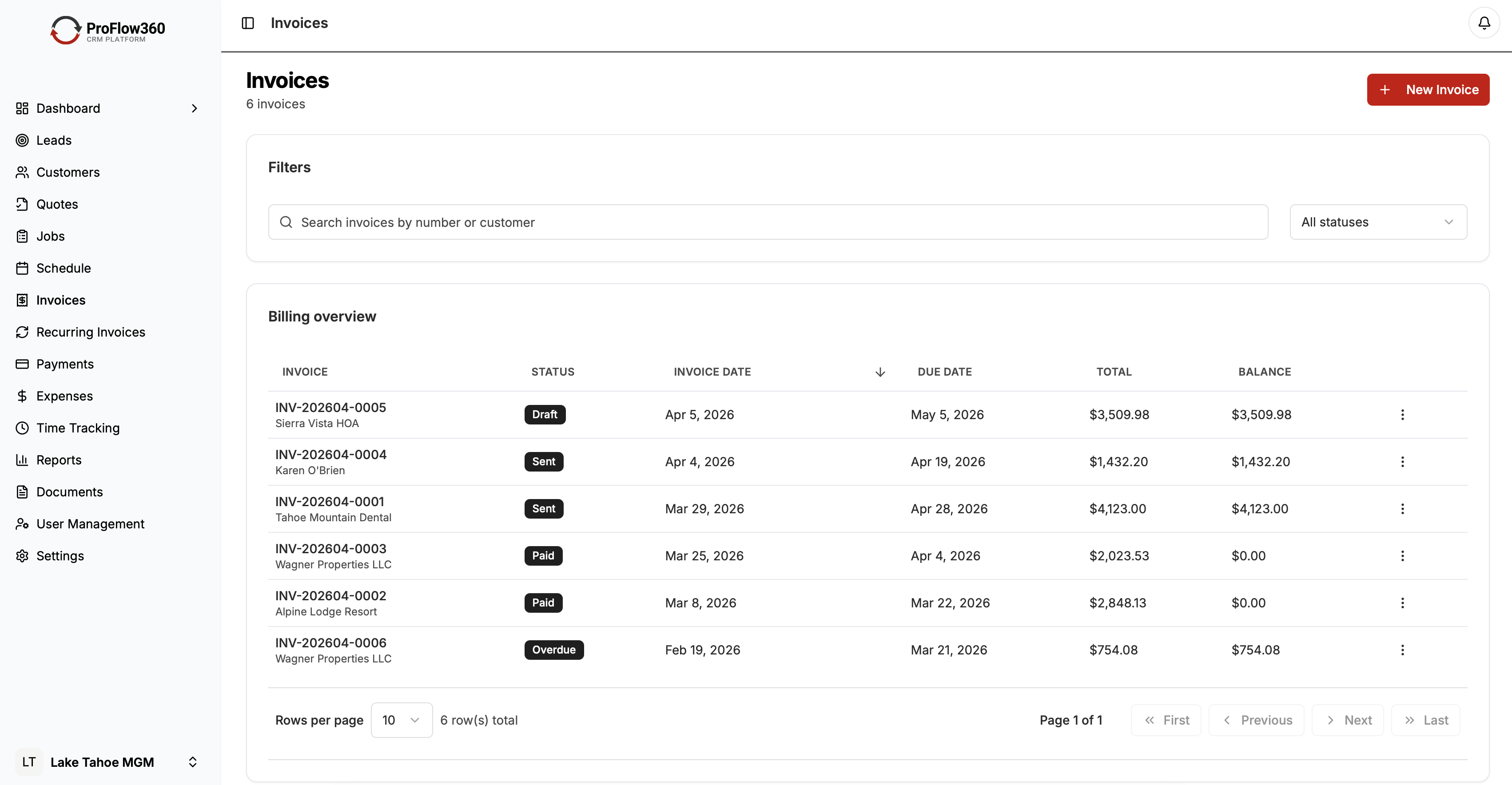
- QuickBooks Online (bidirectional customer and invoice sync)
- Xero (bidirectional customer and invoice sync)
- Gmail and Google Calendar
- Outlook and Office 365 Calendar
- Stripe (payment status sync)
- Google Business Profile (review notifications)
- Zapier (for long-tail tool connections)
The QuickBooks and email integrations are the most commonly used and are worth setting up on day one. Everything else can be added as the need arises.
Conclusion
The right integrations make your CRM the center of your business operations rather than just another system to maintain. The wrong ones add complexity without adding value.
Start with email and accounting. Verify they work correctly before adding anything else. Build toward a connected system where customer data flows automatically between tools — and where your team spends time on work, not data entry. See the full list of ProFlow360 features for native integration support.
Tags
Mark Shvaya
Founder, ProFlow360
Sacramento-based broker and property manager. Built ProFlow360 to solve the operational chaos he lived through managing 50+ doors and a field service team.